Cyber Hygiene: A Family Guide
Practical tips on passwords, MFA, phishing, network security, and keeping your data safe online.February 23, 2026 (6mo ago)You don't need to be a tech expert to stay safe online — but you do need to know the basics. Most cyberattacks don't target companies with sophisticated hacks; they target regular people who reuse passwords, click bad links, or never update their software.
I wrote this guide for my family, but it applies to everyone. It covers the most impactful things you can do today to protect yourself and the people around you. Share it with someone who needs it.
1. Passwords
If you use the same password everywhere, one breach hands over your entire digital life. Most people do it anyway because remembering 50 unique passwords is impossible — which is exactly why password managers exist.
- •Use a password manager. 1Password (paid, excellent UX) or Bitwarden (free, open-source). They generate, store, and autofill strong unique passwords for every site.
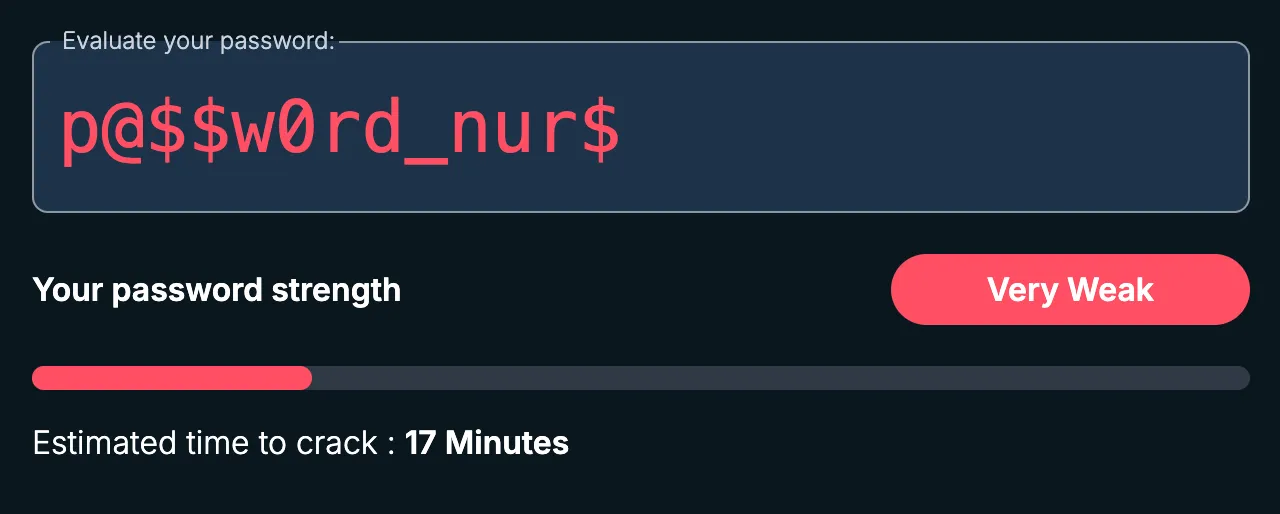
- •Check your password strength. Bitwarden's password strength tester shows you how fast your current passwords can be cracked. Try it — you'll be surprised.
- •Check if you've been breached. haveibeenpwned.com tells you if your email or password appeared in a data breach. If it has, change that password immediately.
- •Never reuse passwords. If one site gets hacked and you used the same email/password combo elsewhere, attackers try it on every other service automatically. This is called credential stuffing.
2. Multi-Factor Authentication (MFA)
A password alone isn't enough. MFA adds a second step — usually a 6-digit code from an app — so even if someone steals your password, they still can't get in.
- •Enable MFA everywhere. Email, banking, social media, cloud storage — anything that supports it. Prioritize your email first, since that's how every other account resets passwords.
- •Use an authenticator app. 1Password can store TOTP (Time-based One-Time Password) codes alongside your passwords. Authy is a solid free alternative with cloud backup.
- •Avoid SMS-based MFA when possible. SIM-swap attacks can intercept text messages. App-based TOTP or hardware keys (like YubiKey) are much safer. But SMS is still better than nothing.
3. Phishing
Phishing is when someone pretends to be a trusted entity (your bank, your boss, Google) to trick you into clicking a link, opening an attachment, or handing over credentials. It's the #1 way people get hacked.
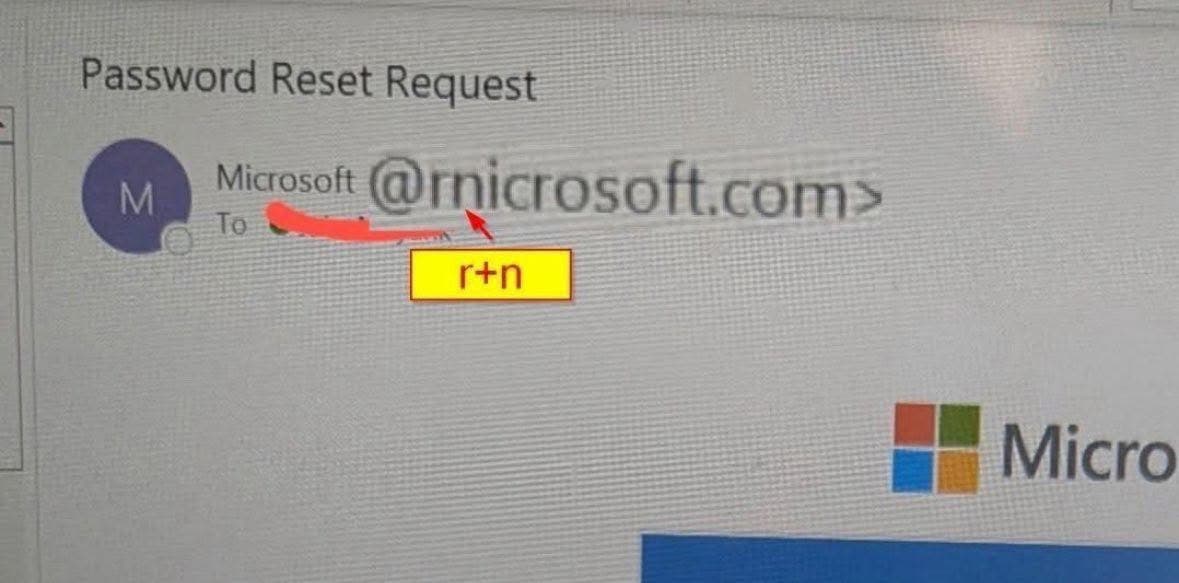
- •Don't click suspicious links. Hover over links before clicking. If the URL looks weird or doesn't match the sender's domain, don't click. When in doubt, go directly to the website by typing the address yourself.
- •Don't open unexpected attachments. Even if it looks like it's from someone you know. If you weren't expecting a file, verify with the sender through a different channel first.
- •Verify the sender. Scammers spoof email addresses to look legitimate. Check the actual email address, not just the display name. "Apple Support" sending from "apple-security@gmail.com" is not Apple.
- •Watch for urgency and fear tactics. "Your account will be suspended in 24 hours!" and "Verify immediately or lose access" are classic pressure tactics. Legitimate companies don't threaten you over email.
4. Network Security
Your home WiFi router is the front door to every device in your house. Most people never change the default settings, which means the password is often printed on the router — or easily guessable.
- •Change the default router password. The admin password that came with your router is often "admin/admin" or printed on a sticker. Change it to something strong immediately.
- •Change the default WiFi name (SSID). Default names like "NETGEAR-5G" or "TP-Link_A1B2" reveal your router model, making it easier for attackers to look up known vulnerabilities.
- •Use WPA3 or WPA2 encryption. If your router still uses WEP or WPA, upgrade your router — those are trivially crackable.
- •Be cautious on public WiFi. Avoid accessing banking or sensitive accounts on coffee shop or airport WiFi. I personally use NordVPN if I must.
5. Software & OS Updates
Every "update available" notification you dismiss is likely a security patch. Attackers actively exploit known vulnerabilities in outdated software — often within hours of a patch being released.
- •Enable automatic updates. On your phone, your computer, and your apps. The minor inconvenience of a restart is nothing compared to getting compromised.
- •Update your browser. Chrome, Firefox, Safari — they all get frequent security patches. An outdated browser is one of the easiest attack vectors.
- •Don't ignore router firmware updates. Most people set up their router and forget about it. Log into your router's admin panel periodically and check for firmware updates.
- •Remove software you don't use. Every installed app is potential attack surface. If you haven't used it in months, uninstall it.
6. Safe Browsing & Email
Most malware doesn't break in through some sophisticated hack — it walks in through the front door because someone downloaded a sketchy file or clicked a link in a scam email.
- •Don't download from unknown sources. Stick to official app stores and verified websites. That "free Photoshop" from a random site is almost certainly bundled with malware.
- •Watch for scam emails. Grammar mistakes, generic greetings ("Dear Customer"), mismatched URLs, and requests for personal information are red flags.
- •Use an ad blocker. Malicious ads (malvertising) can infect your computer just by loading. uBlock Origin is free and effective.
- •Check URLs before entering credentials. Make sure you're on the real site. Bookmark your bank and other important sites to avoid typo-squatting attacks (e.g., "go0gle.com").
7. Your Data Online
You'd be shocked how much of your personal information is freely available online. Data brokers collect and sell your name, address, phone number, relatives, and more — all without your consent.
- •See what's out there. Search yourself on truepeoplesearch.com. You'll likely find your full name, address history, phone numbers, relatives, and associated email addresses — all public and free for anyone to see. I searched myself and found my current address, past addresses, phone numbers, and family members listed. I submitted a removal request directly on TruePeople Search and the listing was taken down within a few days.
- •Remove your data. You can manually request removal from each data broker site (tedious but free), or use a service like Incogni that automates opt-out requests across dozens of data brokers on your behalf.
- •Be mindful of what you share. Social media quizzes, loyalty programs, and "free" services all harvest your data. If the product is free, you are the product.
- •Review app permissions. Does a flashlight app really need access to your contacts? Periodically audit what permissions your apps have and revoke anything unnecessary.
8. Cloud Storage
Cloud storage is incredibly convenient — but "the cloud" is just someone else's computer. Anything you upload can potentially be accessed if the service is breached or your account is compromised.
- •Don't upload sensitive documents. Passport scans, Social Security cards, tax returns, medical records — keep these off Google Drive, iCloud, and Dropbox unless they're encrypted first.
- •Be careful with photo auto-backup. Your phone might be uploading photos of IDs, credit cards, or private documents to the cloud without you realizing it. Review what's in your cloud photo library.
- •Review sharing settings. A file you shared with "anyone with the link" two years ago might still be publicly accessible. Audit your shared files periodically.
- •Enable MFA on your cloud accounts. Your cloud storage is only as secure as the account protecting it. See section 2 above.
Cybersecurity isn't about being paranoid — it's about building good habits. You lock your front door without thinking about it; these are the digital equivalents. Start with a password manager and MFA on your email. That alone puts you ahead of most people.
The weakest link in any security system is the human, and the best fix is awareness.